I was trying to setup Kali Linux in my Windows 10 system. It took time but I learnt a lot in the process. I will show you all the whole process along with the errors and mitigations I did to finally run it successfully.
My Configurations:
- Windows 10
- VirtualBox 6.1.14
- Kali Linux 2022
I installed Kali Linux on VirtualBox successfully. But, was unable to connect it to the internet. The network configurations that I set up for the VirtualBox for Kali was something like this:
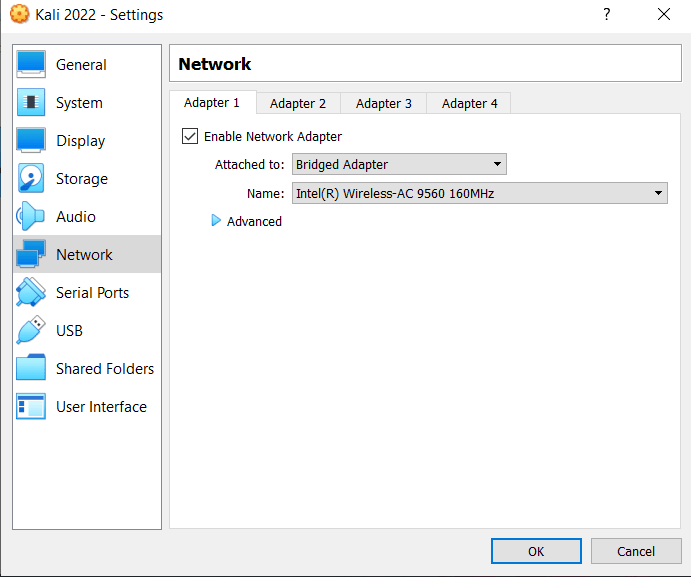
We need to choose Adapter settings, where it asked 2 things:
- Attached to
- “Attached to” should be set up as “Bridge Adapter”, so that the OS will be shown as another device in the network.
- Name
- “Name” can be various things as per your host(Win 10, in my case)
If the host is connected to internet through LAN, choose the PCIe, if Wifi, then choose the wireless, etc., accordingly. I tried everything to connect it to the network, but failed to do so. I tried commands like:
ifconfig -a- Network interface commands
- network-manager commands
- etc.
But all seemed to fail. After that I tried to test my network and changed the adapter settings by trying different combinations(also restarting VirtualBox) just to see whether the issue was on Kali or the VirtualBox settings.
After certain combinations, I got to know that Kali was able to recognize the internet by getting connected(as the network icon in the taskbar is visible). Also after changing to Wireless Adapter, I was able to connect to the network(by pinging in command line to a certain website) as my host OS was connected through Wifi. But, the issue was that I was unable to open any page in the browser in Kali linux, even if it was showing connected to the network. Searched through many sites and blogs, and finally got the answer.
NOTE:
While trying to install Kali in VirtualBox, the network setup was failing stating DHCP issues.
I tried to see the interfaces present in the Kali Linux and its configurations through the command:
cat /etc/network/interfacesI found that there was only 1 interface configuration was present inside that which was lo, but ifconfig command was showing 2 interfaces eth0 and lo. Even, eth0 was connecting to the network as IP was already assigned to it. Then, I edited that interfaces configuration file, which restricted me saying “it’s a readonly file“, means cannot be edited. This lead to using sudo command to gain access for editing. Then, I added 2 lines in that file:
auto eth0iface eth0 inet dhcp
Restarted the networking service with the command: sudo service networking restart
Commands that worked as a solution for me:
cat /etc/network/interfaces: for viewing interfacessudo nano /etc/network/interfaces: for editing interface, so that eth0 could be addedsudo service networking restart: to restart the network services
THINGS I LEARNED:
- Kali Linux comes by disabled networking by default.
- Most of the commands may not work as the OS gets updated and some commands need to be validated before applying.
 Mahesh
Leave a comment